Legacy API — deprecated. This walkthrough uses the legacy /api/v2
configuration endpoints, kept only for existing integrations. New integrations
should follow the Service API quickstart instead. Once your
PBO group has been switched over to the current Service API, the endpoints below return
code: 13310 — see the Service API overview for details.
Base URLs: https://uat-mtms.mspayhub.com/api/v2 (UAT), https://mtms.mspayhub.com/api/v2 (Prod).
Authentication is the same as the current Service API — see
Authentication.
OpenAPI definition for the /api/v2 endpoints:
Get your group ID
Your groupId is used to look things up (e.g. acquirer profiles) — you do not need to send it
in any request body. The PBO is always identified from your Bearer token; a groupId field in a
request body is silently ignored.
You can retrieve the owner information as below:
GET https://uat-mtms.mspayhub.com/api/v2/current
Authorization: Bearer {jwt}
Example Response - 200 OK
HTTP/2 200 OK
content-type: application/json;charset=UTF-8

{
  "msg": "SUCCESS",
  "code": 0,
  "data": {
    "groupName": "Sandbox",
    "messageFormat": "[\"MS_ENABLER\"]",
    "groupId": "G-12345678",
    "emailSender": "{}",
    "updatedAt": "2024-07-19T09:27:29+0000"
  }
}
Create the EMV configs
emvList on the acquirer profile (next step) references EMV configs by ID — create them first.
Unlike the multi-acquirer API, params here is a plain JSON object, not a JSON-encoded string. See
EMV Config for all fields.
POST https://uat-mtms.mspayhub.com/api/v2/emv
Authorization: Bearer {jwt}
Content-Type: application/json

{
  "emvName": "l3-visa",
  "paymentMethod": "01",
  "params": {
    "aid": "A0000000031010",
    "appVersion": "0002",
    "clFloorLimit": 0,
    "clTransLimit": 99999999,
    "clCVMLimit": 100000
  }
}HTTP/2 200 OK
content-type: application/json;charset=UTF-8
{ "msg": "SUCCESS", "code": 0, "data": { "id": 1675 } }Repeat for payment method 02 (e.g. "emvName": "l3-mastercard") — this walkthrough assumes it
comes back as "id": 1676.
Create an acquirer profile
Unlike the multi-acquirer API, a single-acquirer profile can cover every payment method the
merchant needs at once — there's no need for one profile per method. methodList/emvList are
JSON-encoded strings, keyed by payment method code. See
Acquirer Profile for all fields.
POST https://uat-mtms.mspayhub.com/api/v2/acquirer
Authorization: Bearer {jwt}
Content-Type: application/json

{
  "profileName": "Visa & Mastercard - SG",
  "currency": "SGD",
  "connMessageFormat": "MS_ENABLER",
  "connUrl": "https://acquirer-host.example.com/gateway",
  "methodList": "{\"01\":[],\"02\":[]}",
  "emvList": "{\"01\":[1675],\"02\":[1676]}"
}HTTP/2 200 OK
content-type: application/json;charset=UTF-8
{ "msg": "SUCCESS", "code": 0, "data": { "id": 316 } }Create merchant
You can create the merchant as below. supportedPaymentMethods binds the merchant to the acquirer
profile from the previous step — use "paymentMethod": "ALL" to bind every payment method that
profile supports in one go (or list specific methods like "VISA", "MASTERCARD" individually).
If you omit supportedPaymentMethods entirely, the merchant falls back to your PBO's default
acquirer profile, if one is configured.
POST https://uat-mtms.mspayhub.com/api/v2/mchInfo
Authorization: Bearer {jwt}
Content-Type: application/json

{
  "mchName": "ACME Café",
  "contactEmail": "[email protected]",
  "contactName": "John Doe",
  "timeZone": "Asia/Singapore",
  "providerReference": "my-reference",
  "mcc": "5814",
  "country": "SG",
  "supportedPaymentMethods": [
    { "paymentMethod": "ALL", "profileId": 316 }
  ]
}
Example Response - 200 OK
HTTP/2 200 OK
content-type: application/json;charset=UTF-8

{
  "msg": "SUCCESS",
  "code": 0,
  "data": {
    "mchId": "M1721816099",
    "contactEmail": "[email protected]",
    "contactName": "John Doe",
    "groupId": "G-12345678",
    "mchName": "ACME Café",
    "timeZone": "Asia/Singapore",
    "mcc": "5814",
    "country": "SG",
    "uuid": "M1721816099",
    "createdAt": "2024-07-24T10:14:59+0000",
    "receiptLogo": "https://d1s8odmojpby5x.cloudfront.net/logo-merchant-images.png",
    "providerReference": "my-reference",
    "state": 1,
    "id": "M1721816099",
    "supportedPayments": [
      "VISA",
      "MASTERCARD"
    ],
    "updatedAt": "2024-07-24T10:14:59+0000"
  }
}
Check or update the merchant payment config
supportedPaymentMethods on merchant creation already bound both methods to profile 316 above.
Use this endpoint later to see the current binding or to rebind a single payment method to a
different acquirer profile — since a payment method maps to exactly one profile on the
single-acquirer API, setting one that's already bound just overwrites it. See
Payment Config for all fields.
GET https://uat-mtms.mspayhub.com/api/v2/mchInfo/payment/M1721816099
Authorization: Bearer {jwt}HTTP/2 200 OK
content-type: application/json;charset=UTF-8
{
"msg": "SUCCESS",
"code": 0,
"data": [
{ "paymentMethod": "VISA", "profileId": 316 },
{ "paymentMethod": "MASTERCARD", "profileId": 316 }
]
}POST https://uat-mtms.mspayhub.com/api/v2/mchInfo/payment/M1721816099
Authorization: Bearer {jwt}
Content-Type: application/json
{
"paymentMethod": "VISA",
"profileId": 316
}HTTP/2 200 OK
content-type: application/json;charset=UTF-8
{ "msg": "SUCCESS", "code": 0 }Create activation code
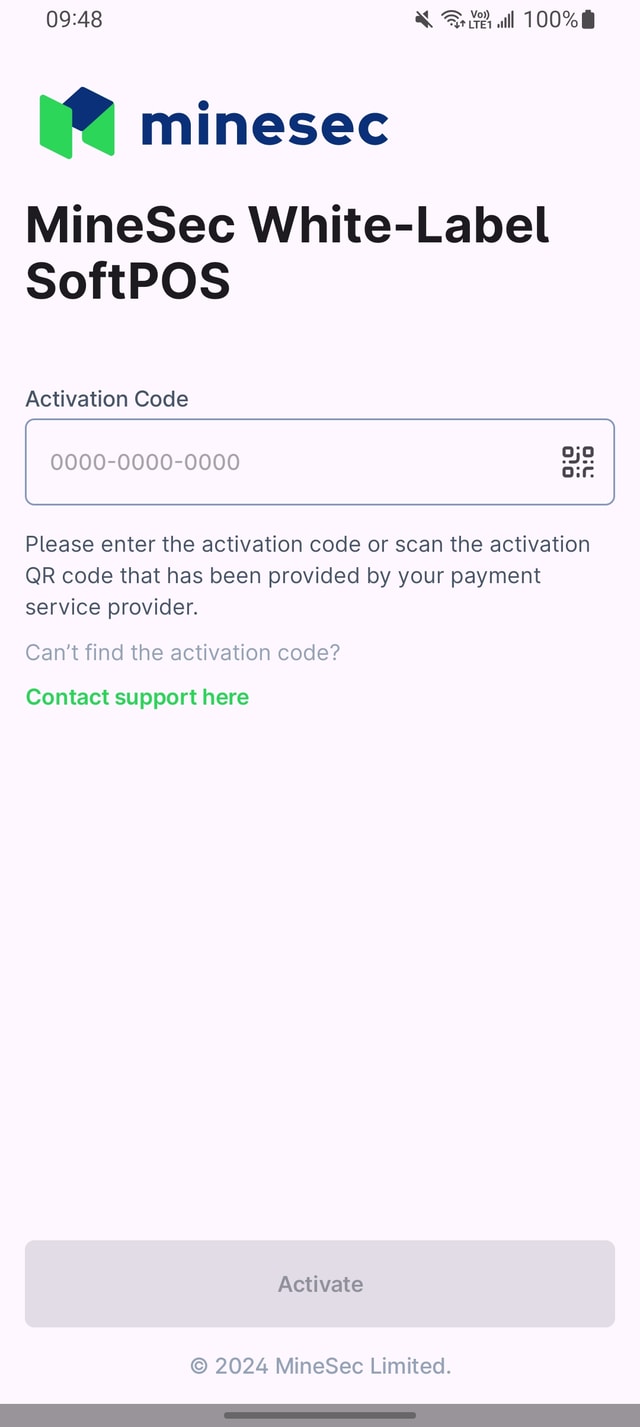
Once the merchant is created, you can provision the activation code for the SoftPOS app as below
mchId retrieved from the previous APIFor the MID/ TID binding, you can pass it in the request methodList
POST https://uat-mtms.mspayhub.com/api/v2/device
Authorization: Bearer {jwt}
Content-Type: application/json

{
  "deviceType": "COTS",
  "activateCodeAlias": "Code name",
  "deviceAdmin": "passcode",
  "methodList": "{\"all\":{\"tid\":\"12345678\",\"mid\":\"1234567890123\"}}",
  "mchId": "M1721871518",
  "extParams": {"acqMid": "000","acqTid": "000"}
}
Example Response - 200 OK
HTTP/2 200 OK
content-type: application/json;charset=UTF-8

{
  "msg": "SUCCESS",
  "code": 0,
  "data": {
    "id": "CD-017241045101",
    "activationCode": "017241045101"
  }
}
From the response, you can use the activationCode for the login on SoftPOS app!